
Category: RandTech Updates

  • Windows 11 Bluetooth Problems: Fix the Cause Before Replacing Hardware

    Windows 11 Bluetooth Problems: Fix the Cause Before Replacing Hardware

    A wireless headset that stutters, a mouse that disconnects or a laptop that shows the wrong Bluetooth status can quickly become a daily frustration. The tempting response is to replace the accessory—or blame the entire computer.

    Microsoft is now testing several Windows 11 Bluetooth fixes, including improvements for inaccurate connection reporting, random disconnections, audio behaviour and some controllers. The changes appeared in a preview build reported on 12 September 2026. Because the fixes are still in preview, they should not be treated as a universal solution or installed casually on important business PCs. Windows Central’s report summarises the affected behaviours.

    First identify the pattern

    Good troubleshooting begins by describing exactly what fails.

    Does the problem affect one headset or every Bluetooth device? Does it happen only during Teams calls, after the laptop wakes from sleep or when connected to a docking station? Does the same headset work correctly with a phone?

    These observations separate four broad causes: the accessory, the computer’s Bluetooth hardware, drivers and Windows, or radio interference.

    Complete supported updates

    Install normal released Windows updates and manufacturer-approved driver or firmware updates. Restart the PC afterwards; shutdown and fast-start behaviour do not always produce the same clean reload.

    Avoid downloading drivers from random “driver update” websites. Use Windows Update, the laptop manufacturer’s support page or the hardware vendor’s official utility. An incorrect driver can make the problem less predictable and introduce security risk.

    Remove simple environmental causes

    Bluetooth and 2.4 GHz Wi-Fi share crowded radio space. USB 3 devices, hubs and poorly shielded cables can also contribute to interference.

    Test close to the computer, move wireless dongles away from USB hubs, temporarily disconnect unnecessary USB devices and compare performance on a different desk. If the issue occurs only in one physical location, replacing the headset may change nothing.

    Check power and application behaviour

    A laptop may reduce power to wireless hardware to save battery. The problem can therefore appear after sleep or only when unplugged.

    Also test outside the affected application. If music plays correctly but audio fails in Teams, confirm the selected speaker and microphone, Teams updates and whether another application has taken control of the device.

    Forget and re-pair the device only after recording any required PIN or configuration. Re-pairing can clear a damaged relationship, but repeated pairing without diagnosis merely resets the symptom.

    When hardware repair is justified

    Suspect the accessory when it fails with several computers or phones. Suspect the laptop when multiple known-good devices fail on that machine, especially if Wi-Fi problems or physical damage appeared at the same time.

    A technician can test with a known-good USB Bluetooth adapter. If the external adapter works reliably, the internal module, antenna, driver or motherboard connection deserves closer inspection.

    PC Warehouse diagnoses Windows, driver and hardware faults in Randburg before recommending replacement. RandTech IT can standardise headsets, drivers and meeting configurations across a business fleet.

    Do not spend money until you know which component is failing. A disciplined test can reveal whether the correct fix is a released update, a driver repair, a new dongle, a replacement headset or work on the laptop itself.

  • September 2026 Windows Update: What Businesses Must Do Now

    September 2026 Windows Update: What Businesses Must Do Now

    Microsoft’s September 2026 security release deserves more attention than an ordinary monthly update. Published on 8 September, it addresses an exceptional number of vulnerabilities across Windows and other Microsoft products. Technical analyses count roughly 970 Microsoft vulnerabilities, with two already known to be exploited; totals vary slightly depending on how products and CVEs are counted.

    For a South African SME, the important question is not whether the headline says 972 or 974. It is whether every supported business computer receives the right updates, restarts successfully and continues to run the applications on which staff depend.

    Why this update matters

    Security updates close weaknesses that attackers can use for activities such as running code, gaining higher privileges or bypassing protections. Once a vulnerability and its fix become public, criminals can study the change and look for organisations that have not yet patched.

    Microsoft’s Windows message centre confirms that the September security update is available for supported Windows versions. Rapid7’s technical review records the unusually large release and the known exploitation status.

    Installing promptly matters, but “promptly” should still be controlled. Applying a large update to every device simultaneously can turn one compatibility problem into a company-wide interruption.

    Use a staged deployment

    A small business does not need enterprise-scale infrastructure to patch sensibly. Start with one or two representative PCs: an ordinary office workstation, a laptop used remotely and, where relevant, a machine running specialist software.

    Check that the pilot devices can:

    • Start and sign in normally
    • Connect to printers, scanners and shared folders
    • Open Outlook, Teams and Microsoft 365 apps
    • Run accounting, payroll and industry software
    • Use VPN and remote-access tools
    • Complete endpoint-security scans
    • Restart without requesting an unavailable BitLocker key

    If the pilot is healthy, deploy to the remaining devices in manageable groups.

    Confirm the update actually installed

    Clicking “Check for updates” is not proof of completion. A computer may have insufficient free space, a damaged Windows Update component, a pending restart or an unsupported Windows version.

    After deployment, record the Windows version, installed update and last successful update date. Investigate devices that have stopped checking in or repeatedly roll back an update. They are often the machines most exposed when a vulnerability is actively exploited.

    Prepare for recovery before restarting

    Before major maintenance, verify that important files are backed up and that BitLocker recovery information can be retrieved. Firmware and security-related changes can occasionally trigger a recovery prompt. The right moment to discover that nobody has the key is before the restart, not while an employee is locked out.

    Keep a rollback and support plan for business-critical machines. Do not erase or reinstall a device merely because one update fails; preserve data and diagnose the cause first.

    Patching is an ongoing service, not a monthly click

    The size of September’s release is a useful reminder that patch management includes inventory, testing, deployment, monitoring and evidence. Antivirus cannot protect an unpatched operating system from every known weakness.

    RandTech IT helps Johannesburg SMEs monitor Windows updates, test critical changes and remediate computers that have fallen behind. If you are unsure whether every company PC installed September’s security fixes, arrange a patch-health review before the gap becomes an incident.

  • Why a Slow PC May Need an SSD, Not Replacement

    Why a Slow PC May Need an SSD, Not Replacement

    Why a Slow PC May Need an SSD, Not Replacement

    A computer that takes several minutes to start, freezes while opening applications and becomes unresponsive during updates may appear to have reached the end of its life.

    In many cases, the real bottleneck is an old mechanical hard drive.

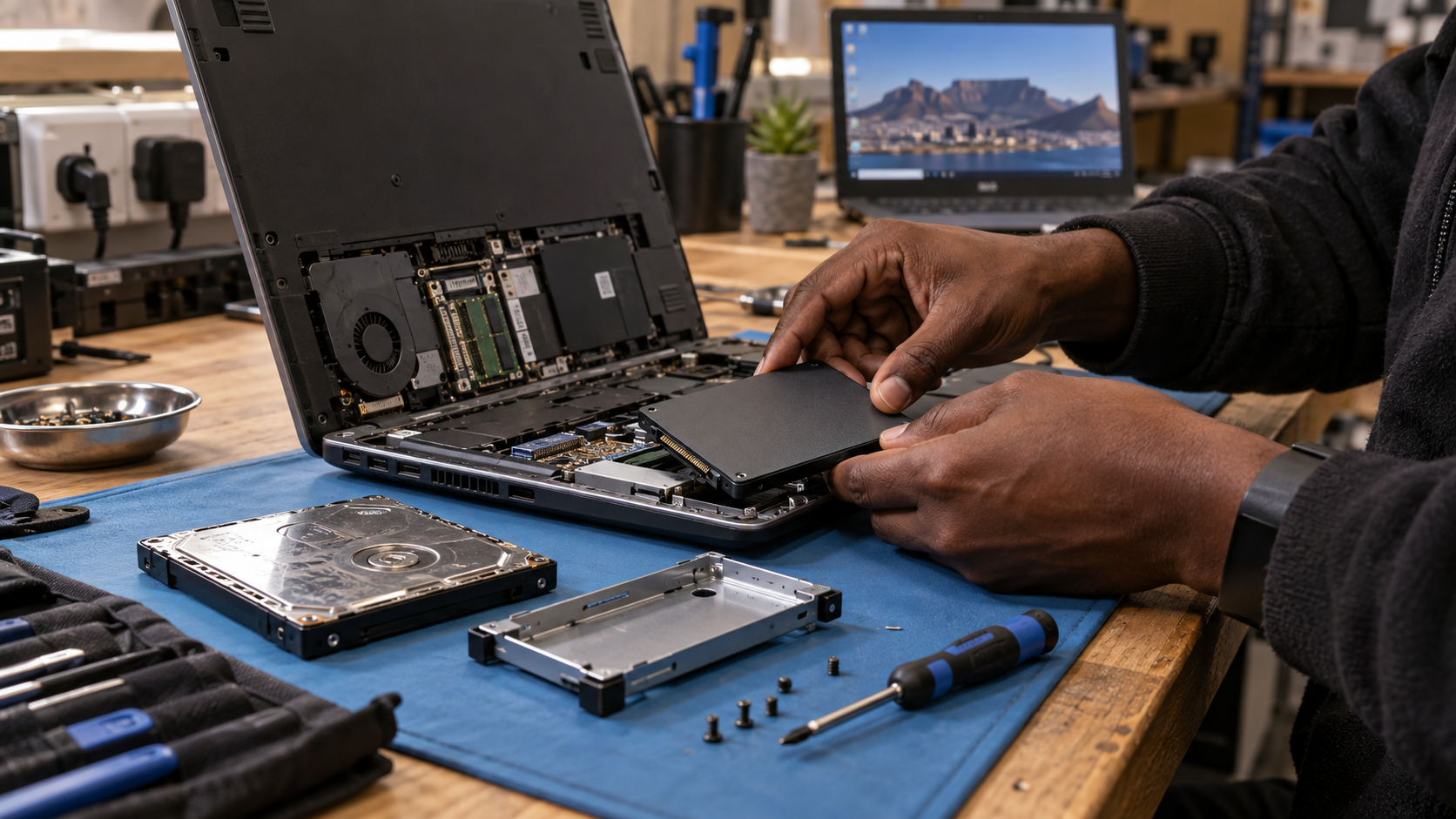
    Replacing that drive with a solid-state drive can dramatically improve startup times, application loading and everyday responsiveness. For a suitable computer, an SSD upgrade can provide several more years of useful service at a fraction of the cost of replacement.

    Why traditional hard drives feel slow

    A mechanical hard disk stores information on spinning platters and uses a moving read-and-write head to access it. This design works well for inexpensive bulk storage, but it is relatively slow when Windows needs to access thousands of small files.

    A solid-state drive has no moving parts. It can retrieve information far more quickly, which is particularly noticeable when:

    • Windows starts
    • Outlook opens
    • Applications launch
    • Updates install
    • Files are searched
    • Several tasks run simultaneously

    An SSD will not turn every old PC into a high-performance workstation, but it can remove one of the most common performance bottlenecks.

    Signs the hard drive may be the problem

    Possible indicators include:

    • Disk usage repeatedly reaching 100%
    • Extremely slow startup
    • Delays when opening folders
    • Freezing during Windows updates
    • Clicking or unusual mechanical sounds
    • File errors or corrupted data
    • Applications becoming unresponsive while the disk is busy

    A failing hard drive is more than a performance problem. It can also become a data-recovery emergency, so unusual sounds and file errors should be investigated promptly.

    When an SSD upgrade makes sense

    An upgrade is usually worth considering when:

    • The processor still meets the user’s needs
    • The computer has enough RAM or can be upgraded
    • The motherboard, screen and hinges are healthy
    • The machine supports the required operating system
    • The total upgrade cost is well below replacement cost
    • The device is otherwise reliable

    A good-quality business laptop with an older hard drive may be a better upgrade candidate than a low-cost new laptop with weaker construction.

    When an SSD will not solve the problem

    Storage is only one component.

    An SSD cannot repair a damaged motherboard, overheating processor, broken hinge or unsuitable amount of RAM. It also cannot make an unsupported computer appropriate for critical business use indefinitely.

    Before approving an upgrade, a technician should evaluate the complete device, including:

    • Drive health
    • RAM usage
    • Processor performance
    • Cooling system
    • Battery condition
    • Windows compatibility
    • Physical condition
    • Backup status

    This prevents customers from spending money on one improvement when several expensive repairs are approaching.

    Cloning versus a clean installation

    An existing hard drive can sometimes be cloned onto the SSD, preserving Windows, applications and settings. This is convenient when the current installation is healthy.

    A clean Windows installation may be preferable when the old system contains corruption, unwanted software or years of accumulated problems. User data must be backed up and verified before either process begins.

    The correct method depends on the condition of the original drive and the customer’s software requirements.

    Diagnose before replacing

    PC Warehouse and RandTech IT provide computer diagnostics, SSD upgrades, data migration and replacement advice in Randburg and Johannesburg.

    We assess the complete machine and explain whether repair, upgrade or replacement offers the best value. If the device is worth saving, an SSD can be one of the most noticeable upgrades available.

    Before replacing a frustratingly slow computer, have it tested. The machine may not be finished—it may simply be waiting for its slowest component to be replaced.

  • Business Email Compromise: The Invoice Scam Targeting SMEs

    Business Email Compromise: The Invoice Scam Targeting SMEs

    Business Email Compromise: The Invoice Scam Targeting SMEs

    A supplier sends an email advising that its banking details have changed. The address appears correct, the invoice looks familiar and the message refers to a genuine project.

    The accounts department processes the payment. Days later, the real supplier asks why the account remains unpaid.

    This is business email compromise, commonly abbreviated to BEC. It is one of the most financially damaging forms of cybercrime because it exploits trusted relationships and normal business processes rather than relying only on malicious attachments.

    How the scam works

    Criminals may use several methods.

    They can register a domain that closely resembles the supplier’s real address. They may compromise the supplier’s mailbox and send messages from the genuine account. In other cases, they access the customer’s email and monitor correspondence until the correct moment to insert fraudulent payment instructions.

    Because the criminals have observed real conversations, they may know:

    • The supplier’s name
    • Which employee handles payments
    • The expected invoice amount
    • The project being discussed
    • When payment is due
    • The wording normally used in emails

    The message can therefore look completely legitimate.

    Why antivirus may not stop it

    A BEC message may contain no virus, malicious attachment or obvious phishing link. It may simply provide different banking details on a modified invoice.

    Traditional antivirus has little to detect. The most effective control is a combination of account security and a strong payment-verification process.

    Warning signs to watch for

    Treat these situations with caution:

    • New banking details
    • An unexpected request for urgent payment
    • Pressure to keep the transaction confidential
    • A subtle change in the sender’s domain
    • A reply-to address that differs from the sender
    • An invoice that looks slightly different
    • A request to bypass normal approval
    • Unusual timing or writing style
    • Claims that the supplier’s phone is unavailable

    A correct-looking email address is not absolute proof. A genuine mailbox may be compromised.

    Verify through an independent channel

    Every bank-detail change should be verified using contact information already held by the business.

    Do not phone the number included on the new invoice or in the suspicious email. Retrieve the supplier’s established number from your accounting records, original agreement or trusted website.

    The person verifying the change should record:

    • Who was contacted
    • Which trusted number was used
    • Who confirmed the details
    • The date and time
    • Whether a second person approved the payment

    The same procedure should apply to executives and long-standing suppliers. Familiarity is exactly what the criminal is exploiting.

    Secure the email environment

    Businesses should also:

    • Enable multifactor authentication
    • Protect administrator accounts
    • Review suspicious mailbox rules
    • Remove access belonging to former employees
    • Configure domain-authentication protections
    • Monitor unusual logins
    • Train finance staff using realistic examples
    • Use dual approval for significant payments

    If fraud is discovered, immediately contact the bank, IT provider and appropriate authorities. Speed may affect whether funds can be traced or frozen.

    RandTech IT helps South African SMEs secure Microsoft 365, investigate suspicious mailbox activity and implement practical anti-phishing controls.

    A professional-looking invoice is not proof of authenticity. When banking details change, pause the payment and verify the request independently. A two-minute phone call can prevent a loss that takes months—or longer—to resolve.

    Reference: INTERPOL guidance on business email compromise

  • POPIA and AI: Can Staff Paste Client Data Into ChatGPT?

    POPIA and AI: Can Staff Paste Client Data Into ChatGPT?

    POPIA and AI: Can Staff Paste Client Data Into ChatGPT?

    Employees are increasingly using ChatGPT, Microsoft Copilot, Claude and other generative-AI tools to summarise documents, draft correspondence and analyse information.

    The productivity benefits can be substantial. The risk appears when staff paste client records, identity documents, contracts, financial information or confidential company data into an AI service without understanding where that information goes.

    Under South Africa’s Protection of Personal Information Act, a business remains responsible for personal information under its control. Using a convenient AI tool does not remove that responsibility.

    What information should concern businesses?

    Potentially sensitive prompts may contain:

    • Customer names and identity numbers
    • Contact and address information
    • Medical or insurance information
    • Banking and payment details
    • Employee disciplinary records
    • Contracts and legal correspondence
    • Passwords or security configurations
    • Confidential pricing and proposals
    • Proprietary source code
    • Information received under a non-disclosure agreement

    Even when a task seems harmless, the surrounding document may contain far more information than the employee intended to share.

    Is using AI automatically a POPIA violation?

    No. AI use is not automatically unlawful, and the answer depends on the service, configuration, contract, purpose and information involved.

    However, the business should establish whether it has a lawful basis for processing the data, whether the use is compatible with the original purpose, whether adequate security safeguards exist and whether information may be processed outside South Africa.

    The organisation must also consider contractual confidentiality—not only POPIA. A client agreement may prohibit disclosure to an unapproved third party even if the information does not meet a narrow definition of personal information.

    Consumer and enterprise AI are not identical

    AI products may offer different privacy and data-handling terms depending on the plan being used.

    An enterprise service configured through an approved company tenant may provide stronger controls than an employee’s personal free account. Features can include administrative management, access controls, contractual protections and limitations on using business data for model training.

    That does not mean every enterprise AI prompt is automatically safe. The business must still control access, minimise information and configure the service correctly.

    Adopt a simple staff rule

    Until a tool has been formally approved, employees should not paste personal, confidential or client-identifiable information into it.

    Where AI assistance is appropriate, staff can often remove or replace sensitive information. For example:

    • Replace names with “Client A”
    • Remove identity and account numbers
    • Exclude signatures and contact details
    • Summarise the relevant facts instead of uploading the full file
    • Use fictional figures when testing a calculation
    • Paste only the paragraph needed for editing

    Redaction should be performed before information reaches the AI tool.

    What should an AI policy include?

    A practical workplace AI policy should define:

    • Approved tools and accounts
    • Prohibited information
    • When redaction is required
    • Who may upload documents
    • Human review requirements
    • Rules for generated legal, financial or technical advice
    • Retention and record-keeping
    • Incident reporting
    • Approval for new AI services

    Staff also need short, realistic training. A policy hidden in a folder will not change daily behaviour.

    Use AI deliberately

    RandTech IT helps South African businesses assess AI tools, secure Microsoft 365 environments and develop practical usage policies that balance productivity with privacy.

    Generative AI can be enormously useful, but convenience should not bypass client confidentiality. Before pasting business information into an AI prompt, employees should ask: is this tool approved, is this data necessary, and can the request be completed without identifying the person?

    For formal compliance decisions, businesses should also obtain advice from a qualified privacy or legal professional.

    Reference: South African Information Regulator

  • How Often Should a Business Test Its Backups?

    How Often Should a Business Test Its Backups?

    How Often Should a Business Test Its Backups?

    A business should test important file restores at least quarterly and conduct a broader recovery exercise at least once a year. Higher-risk businesses may need monthly restore tests and more frequent disaster-recovery exercises.

    There is no universal schedule for every organisation. The correct frequency depends on how quickly information changes, how costly downtime would be and whether the business handles regulated or highly sensitive data.

    The central principle is simple: a successful backup notification does not prove that the business can recover.

    Why backups fail when they are needed

    A backup job may display a green status while still failing to protect the information the business considers critical.

    Common problems include:

    • Important folders were never selected
    • A new server or SharePoint site was not added
    • Backup credentials expired
    • Storage reached its capacity
    • Files were already corrupted before being copied
    • The backup is encrypted by the same ransomware
    • Nobody knows the recovery password
    • Restore instructions are outdated
    • The available internet connection is too slow for timely recovery

    These problems are often discovered only when someone urgently needs the data.

    Use more than one type of test

    Backup testing should happen at several levels.

    Monthly automated review

    An IT provider should review failed jobs, warnings, storage capacity and devices that have stopped reporting. This is monitoring rather than a complete recovery test, but it catches obvious problems early.

    Quarterly sample restores

    Restore several representative items, such as:

    • An email
    • A OneDrive folder
    • A SharePoint document
    • An accounting-data file
    • A folder from a server
    • Data belonging to a former employee

    Confirm that the restored information opens correctly and that its permissions and dates are usable.

    Annual recovery exercise

    At least once a year, simulate a more serious outage. Assume a server, primary storage system or Microsoft 365 administrator account is unavailable.

    Measure how long it takes to rebuild access and restore priority services. The exercise should expose unclear responsibilities, missing passwords and unrealistic recovery expectations.

    Businesses that cannot tolerate several hours of downtime should test more frequently.

    Define what must return first

    Not every file has the same operational value.

    An architectural practice may prioritise active project files. A brokerage may need client records, policy documents and email. A retailer may need point-of-sale data and supplier information.

    Your recovery plan should identify:

    • The most critical systems
    • The order in which they must be restored
    • The maximum acceptable data loss
    • The maximum acceptable downtime
    • Who can authorise a recovery
    • Where passwords and encryption keys are stored
    • How staff will work during the outage

    A test should measure performance against these requirements.

    Test Microsoft 365 as well

    Many SMEs back up a local server but overlook Exchange Online, OneDrive, SharePoint and Teams.

    Microsoft provides resilient infrastructure and native recovery tools, but businesses should understand their configuration and recovery limits. Independent Microsoft 365 backup can provide another recovery layer, particularly where deletion or compromise is discovered late.

    Testing should include the restoration of individual cloud files, folders and emails.

    Record and improve every test

    Document what was restored, how long it took and which problems occurred. Assign corrective actions and repeat failed tests.

    RandTech IT helps South African businesses implement monitored backups, test Microsoft 365 and local-data recovery, and create practical disaster-recovery plans.

    If your business has never completed a recorded restore test, you do not yet know whether you have a working backup. Schedule the test before a real emergency sets the deadline for you.

    Source: CISA’s ransomware and backup guidance

  • How to Recognise AI-Generated Phishing Emails in 2026

    How to Recognise AI-Generated Phishing Emails in 2026

    How to Recognise AI-Generated Phishing Emails in 2026

    “Look for bad spelling” is no longer enough to protect a business from phishing.

    Generative AI can produce professional emails with correct grammar, convincing formatting and a tone that sounds like a supplier, manager or colleague. Criminals can combine AI with information from websites, LinkedIn profiles, data breaches and previous email compromises to create highly believable messages.

    INTERPOL’s 2026 African Cyberthreat Assessment says artificial intelligence is enabling cybercrime across Africa to become faster, more scalable and increasingly sophisticated.

    Employees therefore need to judge an email by its request and context—not simply by how well it is written.

    AI makes personalisation easier

    A criminal can quickly gather names, job titles, suppliers and current projects from public sources. AI can then turn that information into a message aimed at one specific employee.

    For example, an accounts user may receive a message appearing to come from a known supplier, explaining that its banking details have changed. A manager may receive a realistic Microsoft 365 login alert. An employee may hear a voice note that resembles an executive asking for an urgent payment.

    The individual details may be accurate even when the request is fraudulent.

    Warning signs still exist

    AI-generated phishing may be polished, but criminals still need the recipient to perform an action. Focus on that action.

    Be suspicious when a message requests:

    • An urgent or confidential payment
    • A change to supplier banking details
    • Login through an unexpected link
    • An MFA code or approval
    • Confidential customer or employee information
    • Installation of remote-access software
    • Purchase of vouchers or gift cards
    • Bypassing the normal approval process
    • Opening an unexpected shared document

    Urgency, secrecy and unusual procedure are stronger indicators than spelling mistakes.

    Check the sender carefully

    A displayed name can be copied easily. Examine the full email address and domain.

    Criminals may use a lookalike domain containing an extra letter, substituted character or different ending. An email may also come from a legitimate account that has been compromised, so a correct address is not absolute proof.

    Do not use the phone number or contact details included in the suspicious message to verify it. Use a number already held in your records or speak to the person directly.

    Treat login links with caution

    Fake Microsoft 365 pages can closely resemble the real sign-in screen. Some attacks also relay authentication in real time or attempt to trick users into approving an MFA request.

    Instead of clicking an unexpected email link, open the service through a saved bookmark or enter the known address manually. Never provide an MFA code to another person or approve a login you did not initiate.

    If a user enters credentials into a suspicious page, report it immediately. Quick action may allow administrators to reset the password, revoke active sessions and investigate before the account is used against customers or colleagues.

    Introduce a second-channel verification rule

    Every business should have a rule for high-risk requests:

    Changes to banking details, unusual payments and requests for confidential records must be confirmed through a second trusted channel.

    A phone call to a known number may feel inconvenient, but it can prevent a major loss. The verification process should apply regardless of whether the email appears to come from the CEO or a long-standing supplier.

    Technology and training must work together

    Email filtering, endpoint security and MFA remain important. However, no filter can guarantee that every well-crafted message will be blocked.

    RandTech IT helps South African businesses strengthen Microsoft 365 security, review suspicious email activity and train employees using realistic examples.

    The new rule is simple: do not trust an email because it looks professional. Verify the identity, request and procedure before money, passwords or sensitive information leave the business.

    Source: INTERPOL’s 2026 African Cyberthreat Assessment

  • ARM Laptops in South Africa: What Business Buyers Should Know

    ARM Laptops in South Africa: What Business Buyers Should Know

    ARM Laptops in South Africa: What Business Buyers Should Know

    A Windows laptop is no longer guaranteed to contain an Intel or AMD processor.

    A growing number of premium Windows devices now use ARM-based processors, particularly Qualcomm Snapdragon chips. These laptops often promise long battery life, low heat, quiet operation and built-in AI-processing capability.

    They can be excellent devices, but businesses should not buy them based on battery-life claims alone. The processor architecture can affect application, driver and peripheral compatibility.

    What is an ARM laptop?

    Most traditional Windows computers use the x64 processor architecture associated with Intel and AMD. ARM processors use a different architecture designed around power efficiency.

    ARM chips already dominate smartphones and tablets. Apple’s move to its own ARM-based M-series processors also demonstrated that the architecture can deliver strong laptop performance.

    Microsoft and its hardware partners are now expanding Windows on ARM through modern Snapdragon-powered Copilot+ PCs.

    Do normal Windows applications work?

    Many popular applications now offer native ARM versions. Others can run through Windows emulation, which translates traditional x86 or x64 software for the ARM processor.

    For mainstream browser, email, video-call and Microsoft 365 work, compatibility is increasingly good. Microsoft has invested heavily in its Prism emulation technology, while more developers are releasing ARM-native applications.

    The risk lies in specialist or older software.

    A program may install but perform poorly, while another may refuse to run. Applications that depend on particular drivers, low-level security components or uncommon hardware can present greater problems than ordinary productivity software.

    What should businesses test?

    Before standardising on ARM laptops, check:

    • Accounting and payroll applications
    • VPN and remote-access software
    • Endpoint security and monitoring agents
    • Printer and scanner drivers
    • Label printers and specialised USB devices
    • Document-management add-ins
    • Industry-specific applications
    • Legacy database clients
    • Microsoft Outlook add-ins
    • Backup and encryption tools

    A list stating that an application “supports Windows 11” is not enough. Confirm that the exact version supports Windows 11 on ARM.

    Who benefits most?

    ARM laptops can be a strong choice for executives, consultants and mobile staff who spend most of their time in Microsoft 365, web applications, Teams and cloud platforms.

    These users may benefit from:

    • Longer practical battery life
    • Instant or near-instant wake
    • Quiet operation
    • Lower heat output
    • Strong portability
    • Modern AI-assisted features

    They are less suitable where the user depends on specialist peripherals, legacy applications or technical tools that have not been tested on ARM.

    New hardware can still have software problems

    A premium laptop may appear faulty when the real problem is application compatibility or an incomplete software update.

    Microsoft has previously documented cases in which Teams and New Outlook could fail on certain freshly configured ARM devices until the relevant Microsoft Store updates were installed. This highlights the importance of completing Windows, driver and Store updates during setup.

    Reinstalling Windows or exchanging the laptop should not be the first response to every application failure.

    Buy for the workload—not the marketing label

    ARM is not automatically better or worse than Intel or AMD. It is a different platform with meaningful advantages and specific compatibility considerations.

    A business purchasing ten laptops should test one device with its real applications, printers, VPN, security software and shared mailboxes before completing the rollout.

    RandTech IT helps South African businesses compare laptops, verify software compatibility and configure new devices for Microsoft 365, security and data access.

    The right ARM laptop can be an excellent mobile business machine. The wrong one can become an expensive compatibility experiment. A short assessment before purchase is far cheaper than discovering a critical application does not work after deployment.

    Source: Microsoft’s Windows on ARM overview

  • New Outlook vs Classic Outlook: Which Is Better for Business?

    New Outlook vs Classic Outlook: Which Is Better for Business?

    New Outlook vs Classic Outlook: Which Is Better for Business?

    Microsoft is progressively moving Windows users towards New Outlook, but that does not mean every business should switch every employee immediately.

    New Outlook offers a modern interface and a more consistent experience across Outlook on the web and Windows. Classic Outlook remains the established desktop application used by organisations with complex mailbox configurations, legacy add-ins and specialised workflows.

    Microsoft says existing Classic Outlook installations will remain supported until at least 2029. Businesses therefore have time to evaluate the change instead of treating every upgrade prompt as an emergency.

    What New Outlook does well

    New Outlook provides a cleaner interface and receives many of Microsoft’s newest cloud-connected features. Users familiar with Outlook on the web may find the layout easier to understand.

    Potential benefits include:

    • A consistent experience between the browser and Windows application
    • Simplified account and settings management
    • Modern search and calendar features
    • Easier integration with Microsoft’s online services
    • Reduced dependence on some traditional local Outlook components
    • Ongoing feature development from Microsoft

    For users who mainly send email, manage a calendar and work with one or two straightforward mailboxes, New Outlook may be entirely suitable.

    Why some businesses still need Classic Outlook

    Classic Outlook has existed for decades and supports a wide range of mature business workflows.

    A business may need to remain on Classic Outlook where users rely on:

    • Legacy COM add-ins
    • Specialist accounting or document-management integrations
    • Complex shared-mailbox workflows
    • PST files and established archive processes
    • Advanced offline access
    • Custom forms, macros or automation
    • Features that are not yet equivalent in New Outlook

    Compatibility continues to improve, but an apparently small missing feature can have a large operational effect if it sits inside a daily process.

    Shared mailboxes need careful testing

    Many South African SMEs use shared mailboxes for accounts, claims, sales, support or general enquiries.

    Before migration, test how users open the mailbox, send from its address, search older messages, use categories and manage signatures or delegated calendars. Do not assume that a workflow behaves identically merely because the mailbox appears in both applications.

    Businesses with several large shared mailboxes should also review permissions and caching. In Classic Outlook, automatically caching multiple shared mailboxes can produce very large OST files, consume disk space and cause confusing “mailbox full” or synchronisation symptoms even when the server mailbox is not full.

    Can users switch between them?

    In many current installations, users can try New Outlook and return to Classic Outlook. Microsoft’s rollout phases and available controls depend on the Microsoft 365 licence and update channel.

    IT administrators should manage the transition centrally where possible. Allowing each user to switch independently can create inconsistent interfaces, duplicated support work and uncertainty about which features should be available.

    Test before standardising

    A sensible migration process should:

    1. Document important Outlook workflows and add-ins
    2. Select a small pilot group
    3. Test shared mailboxes, printing, search and offline access
    4. Confirm line-of-business integrations
    5. Train users on changed layouts
    6. Keep a controlled fallback path
    7. Expand deployment only after the pilot succeeds

    The best Outlook version is the one that supports the user’s real work reliably.

    RandTech IT helps businesses troubleshoot Outlook, optimise shared-mailbox configurations and plan controlled New Outlook deployments.

    If your staff are receiving prompts to change Outlook, do not click through blindly or block the change forever. Test the new application against your business processes, identify genuine compatibility gaps and move when the organisation is ready.

    Source: Microsoft’s New Outlook adoption guidance

  • What to Do After a Ransomware Attack: An SME Response Guide

    What to Do After a Ransomware Attack: An SME Response Guide

    What to Do After a Ransomware Attack: An SME Response Guide

    A ransomware incident rarely begins with a dramatic message appearing on every screen. The first warning may be a user unable to open a document, a shared folder containing strangely renamed files or a computer suddenly running unusual processes.

    What happens during the next hour can determine whether the incident affects one computer or spreads across the business.

    South African SMEs should have a simple ransomware response plan that employees and decision-makers can follow without improvising under pressure.

    1. Isolate affected devices

    Disconnect a suspected computer from wired and wireless networks as quickly as possible. Remove its network cable or disable Wi-Fi, but do not immediately erase, reset or reinstall it.

    If several devices show similar symptoms, disconnect affected network segments and shared storage where practical. The objective is to limit further encryption, data theft and movement between computers.

    Do not continue opening files to test whether they work. Every additional action may spread damage or overwrite useful evidence.

    2. Contact your IT and security provider

    Treat the event as a security incident rather than an ordinary computer fault.

    Your provider needs to determine:

    • Which users and devices are affected
    • Whether administrator credentials may be compromised
    • Whether files are still being encrypted
    • Whether Microsoft 365 or other cloud accounts were accessed
    • Whether data may have been stolen
    • Whether backups remain safe
    • How the attacker gained access

    Modern ransomware incidents may include data theft before encryption. Restoring files alone does not establish that the threat has been removed.

    3. Protect identities and administrative access

    If account compromise is suspected, passwords and sessions may need to be reset from a known-clean device. Administrative accounts, remote-access tools, VPN credentials and Microsoft 365 access should receive priority.

    Simply changing one employee’s password may be insufficient. Attackers sometimes create forwarding rules, add authentication methods or establish alternative accounts that allow them to return.

    Security changes should be coordinated carefully so the response team does not accidentally lose access to essential evidence or recovery systems.

    4. Preserve evidence

    Keep affected devices, ransom notes, suspicious emails, timestamps and security logs. Take photographs or screenshots where appropriate, but do not interact unnecessarily with malicious files.

    Evidence can help establish the entry point, scope of the incident and whether personal information was affected. This may also be important for cyber-insurance claims, regulatory obligations and law-enforcement reporting.

    Where personal information may have been compromised, the business should obtain appropriate POPIA and legal guidance regarding notification requirements.

    5. Verify backups before restoring

    Do not reconnect backup drives or begin restoring data until the environment has been assessed.

    A backup connected too early could also be encrypted or contaminated. The recovery team should confirm that the backup predates the attack, remains isolated and can be restored into a clean environment.

    Recovery should follow business priorities. Email, accounting, customer records and operational systems may need to be restored in a planned sequence.

    Should a business pay the ransom?

    Paying does not guarantee that criminals will provide a working decryption key, delete stolen information or avoid attacking again. Payment may also create legal, ethical and insurance complications.

    This decision should not be made impulsively. Obtain specialist incident-response, legal and insurance advice based on the exact circumstances.

    Prepare before the attack

    The best time to decide who disconnects systems, contacts the insurer and authorises recovery is before ransomware is discovered.

    RandTech IT helps SMEs implement managed endpoint protection, Microsoft 365 security, independent backups and tested incident-response procedures.

    If you suspect ransomware, stop using the affected device, disconnect it from the network and contact professional support immediately. Fast containment is far less expensive than allowing a single compromised computer to become a business-wide outage.

    Source: CISA StopRansomware Guide